Your Android phone’s battery health plays an important role in determining its overall performance. If your phone runs out of power quickly, shuts off unexpectedly, overheats, or charges slowly, it could be that the battery is failing. However, apps, software problems, and faults with the charger can also contribute to these issues.
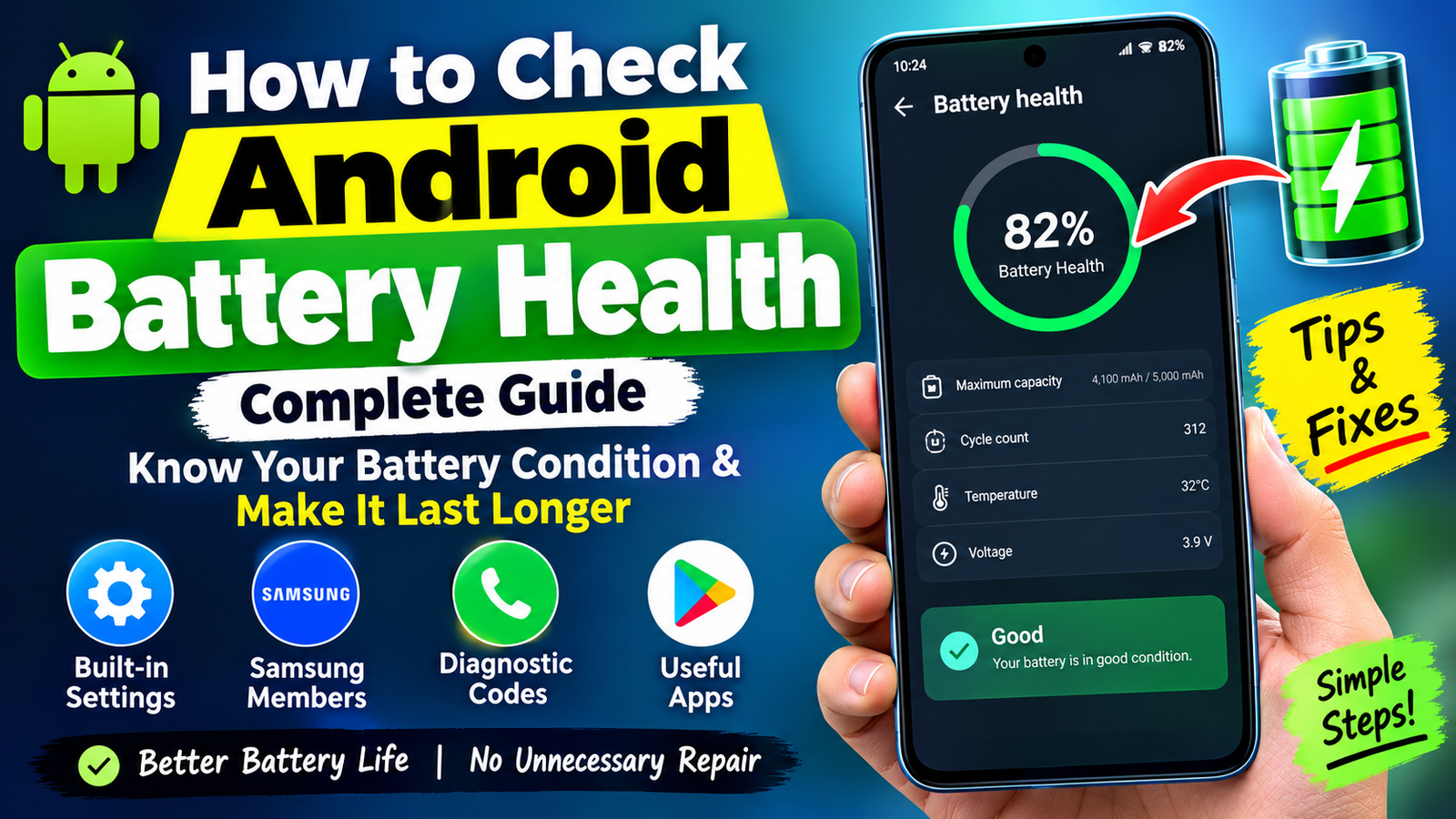
You have several options at your disposal to check the battery health on an Android phone. You can use built-in settings, diagnostic software, or apps. This article shows you how to check the battery health on Android phones, recognize the signs of a faulty battery, and prolong its life without having to replace it.
What Is Battery Health on Android?
Battery health is the status of your Android phone’s battery in relation to its original capacity when it was new.
Most smartphone batteries are made of lithium-ion or lithium-polymer. These materials cause the cells to degrade after being charged and discharged for an extended period of time. So, for example, a smartphone that had a 5000mAh battery when it was new could have 4000mAh when tested today.
Battery level, battery health, battery temperature, and battery cycle count are all not the same:
Battery level: The percentage of charge currently held by the battery cell or cells.
Battery health: The overall percentage of the battery’s original capacity it retains.
Battery temperature: How hot or cold your battery is right now.
Battery cycle count: How many equivalent full charge cycles your battery has experienced.
Being aware of these differences can help you understand if you should change your charging habits, troubleshoot software issues, or contact customer service about a replacement battery.
Check Battery Health in Android Settings
The most straightforward way to check your Android phone’s battery health is to use a built-in setting. Depending on the Android version and the phone manufacturer, you may have different options and settings available to you.
To check your Android battery health
Open your phone’s Settings app.
Tap on Battery or Battery and device care.
Look for an option that shows battery usage, battery information, battery diagnostics, or something similar. Tap on it.
From here, you can see what apps are using the most battery power. If there is an option to view battery health, tap on it.
Some phones offer more information than others, and some simply tell you the battery percentage and approximate remaining charge time.
Note that the Battery category does not always have a battery health option. If it does not, try one of the following manufacturer-specific methods.
How to Check Battery Health on Samsung Phones
Samsung Galaxy phones can use Samsung Members to access a battery diagnostic.
How to check Samsung Galaxy phone battery health
Open the Samsung Members app.
From the Support or diagnostics tab, or the one that looks similar to it, tap Phone diagnostics.
On this screen, find and tap Battery status or one of the battery tests.
If you are prompted, run the diagnostics and then read the results.
If you do not have Samsung Members installed, you may be able to download the application from Galaxy Store or Google Play Store.
Samsung Galaxy phones’ built-in battery diagnostic is handy because it checks the status of the battery through a tool provided by the manufacturer. It is a viable alternative to third-party battery diagnostic software or apps.
If you have a Samsung Galaxy A53 5G phone or another Galaxy model, you may have a slightly different interface depending on the Android version you have.
Use a Secret Android Diagnostic Code
Some Android phones have a secret code that will bring up a testing menu.
The most common code is:
4636
How to use the secret diagnostic code on your Android phone
Open your Phone or Dialer app.
Type in the code using the keypad. The menu should appear if your Android phone supports this code.
Once the menu has appeared, look for an option that says Phone information or Battery information and tap on it. If your phone does not respond to this code, it does not support it.
Do not change any settings in the diagnostic menu unless you know what they do. If it did not work, you can use your phone’s Battery settings or a diagnostics application.
Check Battery Health Using a Trusted App
If your phone does not let you see the percentage of your battery health, you can use a battery-monitoring application to estimate your battery’s remaining capacity.
Some trusted battery-monitoring applications include
AccuBattery: This application estimates battery capacity and keeps track of your battery’s charging and discharging patterns.
Device Info HW: This application shows you the available hardware on your phone, including the battery, depending on the device you have.
Ampere: This application lets you measure the charging and discharging currents on supported devices.
Install battery-monitoring apps from a trusted source like Google Play Store. Make sure to only grant permissions that you are comfortable giving.
How to Use AccuBattery
Install AccuBattery from Google Play Store.
Open the AccuBattery application and set it up.
Continue using your phone while setting up and using AccuBattery.
Charge your phone multiple times.
Open the Health tab and let AccuBattery estimate your battery’s health.
You may have to charge your phone multiple times before AccuBattery can give you a helpful estimate. Your phone’s health percentage on the first day of using the application will probably not be accurate.
Keep in mind that the percentage of an estimated battery health that third-party applications give is not usually an exact analysis of your battery’s actual maximum capacity.
Look for Signs of a Weak Android Battery
There are certain warning signs that indicate weak battery health before a diagnostics tool or application will spot the issue.
Fast battery drain: Your phone loses charge quicker now than it did previously even if you use it the same way.
Unexpected power-offs: Even though the battery shows that it has charge, your phone turns off suddenly.
Slow charging: Your phone charges at a significantly slower pace than before despite using the same charger.
Low percentage drops: Instead of your phone’s battery percentage dropping gradually, it plummets suddenly and without warning.
Overheating: Your phone gets excessively hot while sitting at idle or while charging. This could be due to the environment you are in or the apps you are running.
Battery swelling: If your phone’s case lifts off the phone or the battery looks swollen, this is a serious fault and should be taken to a professional immediately.
If your battery is swollen, stop using and charging your phone and do not press or puncture the battery. Take it to a professional repair service instead.
Check Which Apps Are Draining Your Battery
Your battery not lasting long is not always a sign of poor battery health. An app that runs excessively in the background can mimic the symptoms of a failing battery.
How to check which apps are draining your battery
Open your phone’s Settings app.
Tap on Battery.
Tap on Battery usage or View details and look at the percentage next to Heavy or Light usage.
Restrict background activity of the apps that do not need it.
The exact names of the options here may vary depending on your Android version or manufacturer.
Messaging apps, maps, video apps, games, and social media apps can all be power-drainers if you use them often.
You can also reduce your screen’s brightness, shorten your phone’s screen timeout, and disable location permissions where you do not need them. These steps are especially useful if your battery is still healthy but struggles to last through the day.
How to Understand Battery Health Percentages
If your phone or a diagnostic application gives you a percentage of your estimated battery health, here is a rough idea of what it could mean:
Estimated battery health Meaning
90 – 100% Usually implies that there is little capacity loss
80 – 89% Implies that there is some battery wear
Below 80% Implies that there is significant battery wear
Any percentage with swelling Stop using and charging your device
Keep in mind that percentages are usually only a rough estimation of your battery’s overall health. They can vary from one diagnostic tool to another. They often follow a set of general rules set by the diagnostic tool and not an industry standard.
A battery with less than an 80% estimated health can be a good candidate for battery replacement if it shortens your battery life or causes unexpected power-offs.
How to Make Your Android Battery Last Longer
Now that you have checked and understood your battery health, here are some habits that will prolong your battery’s longevity and reduce its chances of failing.
Avoid excessive heat
Heat will significantly shorten the lifespan of your battery. Avoid leaving your phone in a car that has been sitting in the sun. If your phone regularly overheats while charging, investigate why.
Use a suitable charger
Use a suitable charger and charging cable that is recommended by the phone’s manufacturer or a reputable seller. Faulty charging accessories can cause battery issues and are a fire hazard.
Enable battery protection
Some Android phones have a battery protection feature that stops the phone from charging above a certain percentage or manages overnight charging. Enable this feature if it is available and suitable for your usage.
Reduce unnecessary background activity
Limit apps that constantly sync or track your location without actively being used.
Keep your software updated
Software updates can improve system performance and fix battery-draining issues. Always update your phone from a trusted source.
Do not worry about reaching 0%
You do not need to allow your lithium-ion or lithium-polymer battery to fully discharge before you recharge it.
When Should You Replace an Android Battery?
You should consider a battery replacement at a certified battery repair center if your phone’s battery drains significantly after a short time, randomly powers off, or reports a low battery health estimate.
Before you consider a battery replacement, look for other reasons why your phone’s battery may have failed.
Only consider a battery replacement after you have ruled out software issues, apps that drain batteries, and faulty charging accessories. Choose a certified battery repair center and a battery that suits your phone. A cheap, low-quality battery can be a fire hazard instead of fixing the issue.
If your phone is still under warranty, check the battery service terms of the manufacturer before you spend money on battery repair services.
Frequently Asked Questions
Can I check Android battery health without an app?
Yes. You can use your phone’s battery settings or a manufacturer-provided diagnostics application. Although some Android phones do not list battery health as a percentage.
Is 85% battery health good?
An estimated battery health of 85% implies that the battery has lost some of its original capacity but may still be able to retain a full charge. Whether or not it is a good battery health depends on the battery life, diagnosis results, and your needs.
Does charging overnight damage an Android battery?
Modern Android phones have features that let you know when to stop charging your phone overnight. Charging overnight is not always harmful to an Android battery, but heat can be harmful to an Android battery. Use suitable charging accessories and battery protection features when you can.
How can I check battery health on Samsung Galaxy phones?
Open Samsung Members and look in the Phone diagnostics or the one that looks similar to it. You can also look at the Battery category in Settings to see your battery information and battery usage.
Why does my Android battery drain quickly even when battery health is good?
Your Android phone’s battery could be draining quickly due to apps, weak signal strength, a bright screen, location services, software issues, or excessive heat. Review your battery usage before you conclude that the battery is faulty.
Conclusion
Checking the battery health on your Android phone is an essential part of keeping your phone performing well. Start checking your battery health with your phone’s battery settings. If there is an option, use a manufacturer-specific diagnostics application. You can use a battery-monitoring application if you need an estimate of your battery’s overall capacity.
Fast battery drain does not always indicate that your battery is failing. If apps running in the background, weak signal strength, a bright screen, or location services are the culprits, you can reduce battery drain by adjusting these settings. Taking good care of your battery can prolong its life and prevent it from wearing out prematurely.
If your phone is constantly shutting off, losing significant battery capacity, or its battery is swollen, it is best to take it to a professional repair service instead of relying on software diagnostics.