Running out of storage on your Android phone can be frustrating, specially when some apps that you use are important, but you don’t want to lose the photos, videos, and other files. But Android phones are giving you the ‘storage almost full’ notification? When your storage is almost full, your first instinct might be to uninstall apps: But you don’t really want to get rid of the some of your favorite apps. There are a lot of Android phone storage options. Try these Android tips and tricks to free up space on your device without deleting apps.
Here are some of the most effective ways to free up storage.
Check out what’s using your storage.
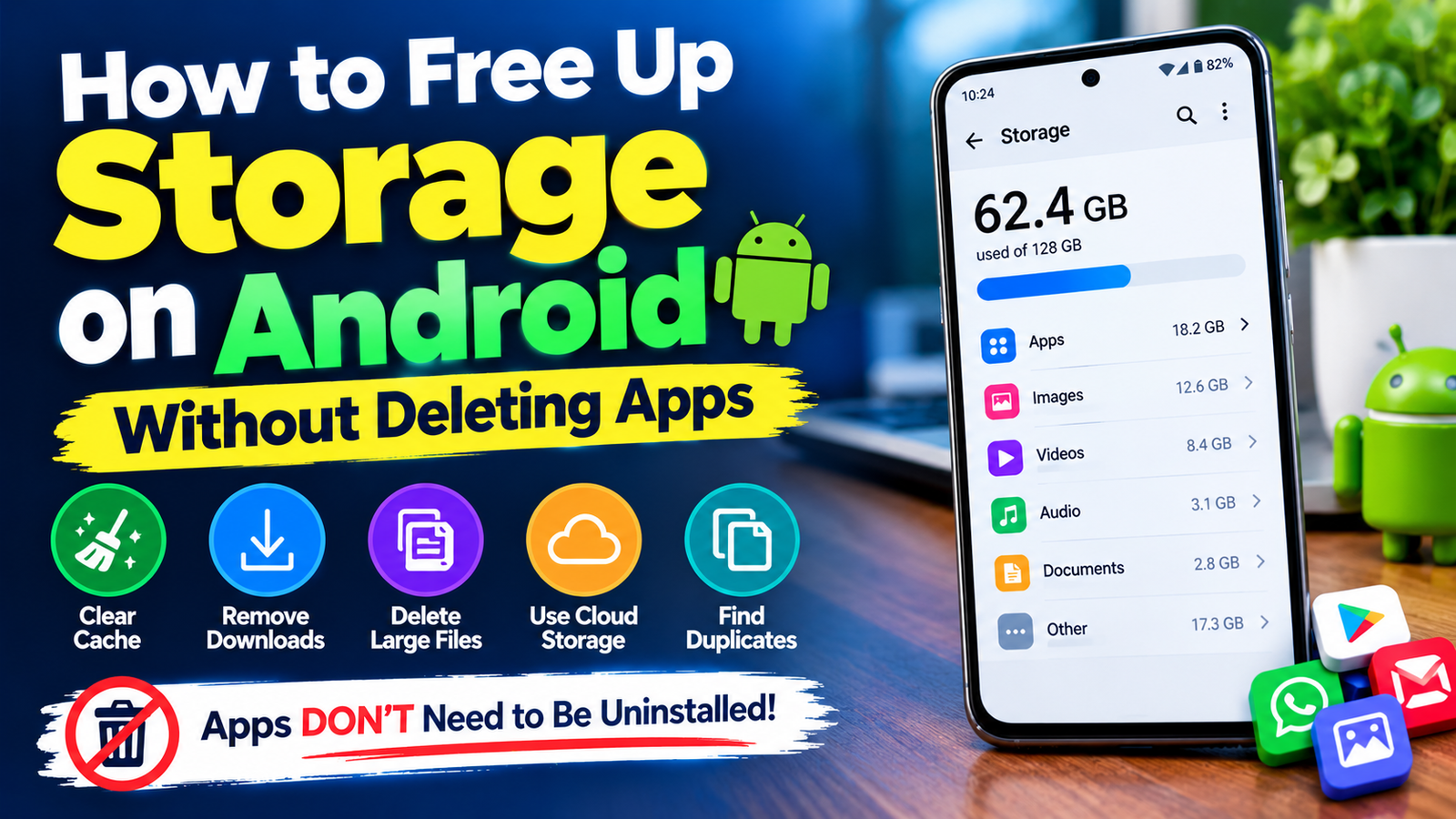
First off, look through the storage on your android phone to see what is taking up the most space.
Open
Settings → Storage
Depending on what phone you have (different android versions) this might be a little different,
but you’ll likely see a few categories like:
Apps
Images
Videos
Audio
Documents
Downloads
System
Other files
This is useful to see what is using up your storage. So for instance, If you have a bunch of videos taking up say, 30 gigabytes, it’s probably easier to delete or transfer one or two big videos than try and look through what files are useless.
Clear cache from apps
Apps can take up gigs of storage space. Some of the biggest offenders? Your apps’ cache. Android apps store some cached data so that they can run faster or remember important information. That might seem totally normal, until all of that cached data adds up.
Open
Settings → Apps
tap the app you want to clear. Then open storage and tap clear cache. (Make sure not to tap clear data, unless you want to clear out all the information for that particular app)
There’s no strict rule about how often you should clear an app’s cache, but it’s smart to consider doing it for any applications that are taking up a large amount of space on your phone.
Delete downloads.
As you probably know, most android phones have a Downloads folder. We often use our android phones to download APK files or whatever random documents we stumble across.
Go to File manager or My Files. Open your Downloads folder to delete unecessary files like old PDFs, APKs, ZIPs, or whatever else might be lying around. (Make sure to not delete anything that you might need later.) You’d be suprised at how many gigabytes you could free up, just by going through your downloaded file!
Delete large videos
Videos are notorious for hogging space on devices, large videos especially.
Go to your Gallery or Photos app and see if there are any videos taking up a large amount of space. Remember: Make sure you have a back up of anything important before deleting it. You can always move your videos to either a USB, computer, or cloud storage.
If you’d like even more space, you can move the videos that you no longer need to a USB, computer, or cloud storage. (Always make sure you have a backup before deleting or moving any files.)
That’s one of the easiest ways to get gigabytes on your Android phone.
Clean up WhatsApp.
WhatsApp media, GIFs, voice messages, and files are taking up space? You can clear them all!
WhatsApp actually has a very handy built-in storage management function. When navigating to WhatsApp, go to
→ Settings → Storage and Data → Manage Storage
Depending on which version of WhatsApp you’re using, there might be some variations, but you should be able to find and delete large videos and files being forwarded. (Also, check and remove large videos.) Again, it may not take much to free up Android space; try clearing any unused file, cache or large video from WhatsApp
You can also use other messaging methods such as Telegram, Messenger, Instagram, TikTok, and your web browser. You might not notice it, but apps often have hidden caches, too.
Delete duplicate photos.
Dupliates and old photos are one of the most common reasons why people run out of space on android. You probably have a few photos of the same thing because it was sent to you by someone or downloaded from a website. A lot of android folders even helpfully find similar or duplicate photos for you to delete.
When deleting pictures, you may want to go to your pictures folder and delete photos and videos taking up extra space that were sent to you or taken from a different application. Always be careful when deleting photos – you don’t want to accidentally delete a photo that you’ll need later. (Note: Don’t delete all your photos that are marked as duplicate. Some of them might have slightly different content.)
Clear Google photos to free up space
If you’ve backed up all your photos and videos to google photos, you have an easy way to free up storage. Google Photos actually offers a convenient Free up space option that’ll let you know which photos and videos are taking up the largest amount of space.
Go to Google Photos and take out any photos and videos that are already backed up. When using Google Photos on your PC or while your phone is nearby and connected to the internet, you can always access those images.
This is especially useful if you have years of photos and videos, and you want to clear some space on your android phone.
Declutter your phone.
One of the first places to look when trying to find storage on an android phone is within your streaming apps. For example, you may have several movies or shows queued up for offline viewing. This also includes music, podcasts, maps that you’ve cached for offline use, and more. Again, it might take some time, but Go through any apps that have offline media and delete whatever you don’t need.
Remember to look in whatever apps you normally use. The process is slightly different for every application, but you should be able to figure it out based on what you already know.
Remove messaging app files.
Along with WhatsApp, there are many other popular messaging apps you have on your device, such as Telegram or Messenger. These apps often take up large amounts of space with GIFs, voice messages, photos, and videos. Again, it just takes a little bit of time to navigate to whichever app you use and clear out any unnecessary media or text files.
Some android phones and apps give special functions for managing your photos. That includes making it easier for you to organize, delete, or transfer photos from your device.
Move media to a computer.
If you don’t feel like deleting anything that you love, maybe you could move it to somewhere else instead. Connect your phone to a computer and transfer any unwanted photos and videos to your computer.
Again, some android phones have trouble with this process unless you’re connected through USB OTG.
If you have lots and lots of Android videos and photos that you’d like to make room for, it might help to move everything to your computer. You can even back up your files so that they aren’t lost in translation.
(Always make sure that the files were transferred correctly before deleting them from your phone.)
Empty your trash/recycling bin.
Most Android phone gallery apps actually don’t permanently delete photoes or videos when you delete them. Instead, they go to a ‘Bin’ folder where they stay for a while, just waiting to take up all your memory. If you really want that space that a couple of gigabytes would take, go to your gallery/recycle bin and permanently delete them with caution. (Because they’re gone from your phone forever.)
Get rid of any uncessary offline maps/documents.
Offline maps can be tricky; sometimes they’re useful but mostly they just sit and take up space. Remove any maps you don’t use often from your navigation app. You could also clear out large documents, PDFs, or presentaitons as well. It’s quite easy to do, just make sure to check and double-check everything.
FAQS
How can I free up my android phone storage space without deleting any apps?
You can uninstall apps or go into storage settings and clear specific app cache, delete unnecessary downloads, remove large videos, clear whats app media, delete dupicates, remove offline downloads or move photos and videos to a computer or somewhere else.
Does clear cache delete my photos?
No, normally clearing apps’ cache doesn’t delete your photos, videos, or other media: Make sure to understand the difference between clearing cache and clearing data before attempting to clear it.
Why is my android storage full after deleting apps?
Sometimes when you delete apps or files from your android device, it doesn’t remove it completely – you need to make sure to empty recycle bin, delete any large videos, caches from apps, whats app media, downloads, etc.
How much free space should Android phone have?
While there isn’t a specific percentage that applies to all phones, it’s safe to say that if storage space is consistently over 100%, you might want to free up some space to prevent issues with phone performance, apps, and updates.
Final thoughts
You don’t have to uninstall all your favorite apps just because your running out of space on your Android phone. In many cases, videos, photos, downloads, messages’ media and files, large caches, and offline content are taking up a large chunk of android storage space. First, see what’s taking up the most space on your phone, and delete or move anything uncessary. Then, try and clear up any application’s cache. Remove any large videos or media, check out whatsapp media and clear those, remove any unneeded documents/downloads, and make sure that your phone’s storage isn’t consistently over 100%. By double-checking and regularly checking what’s taking up space, you’ll be fine.