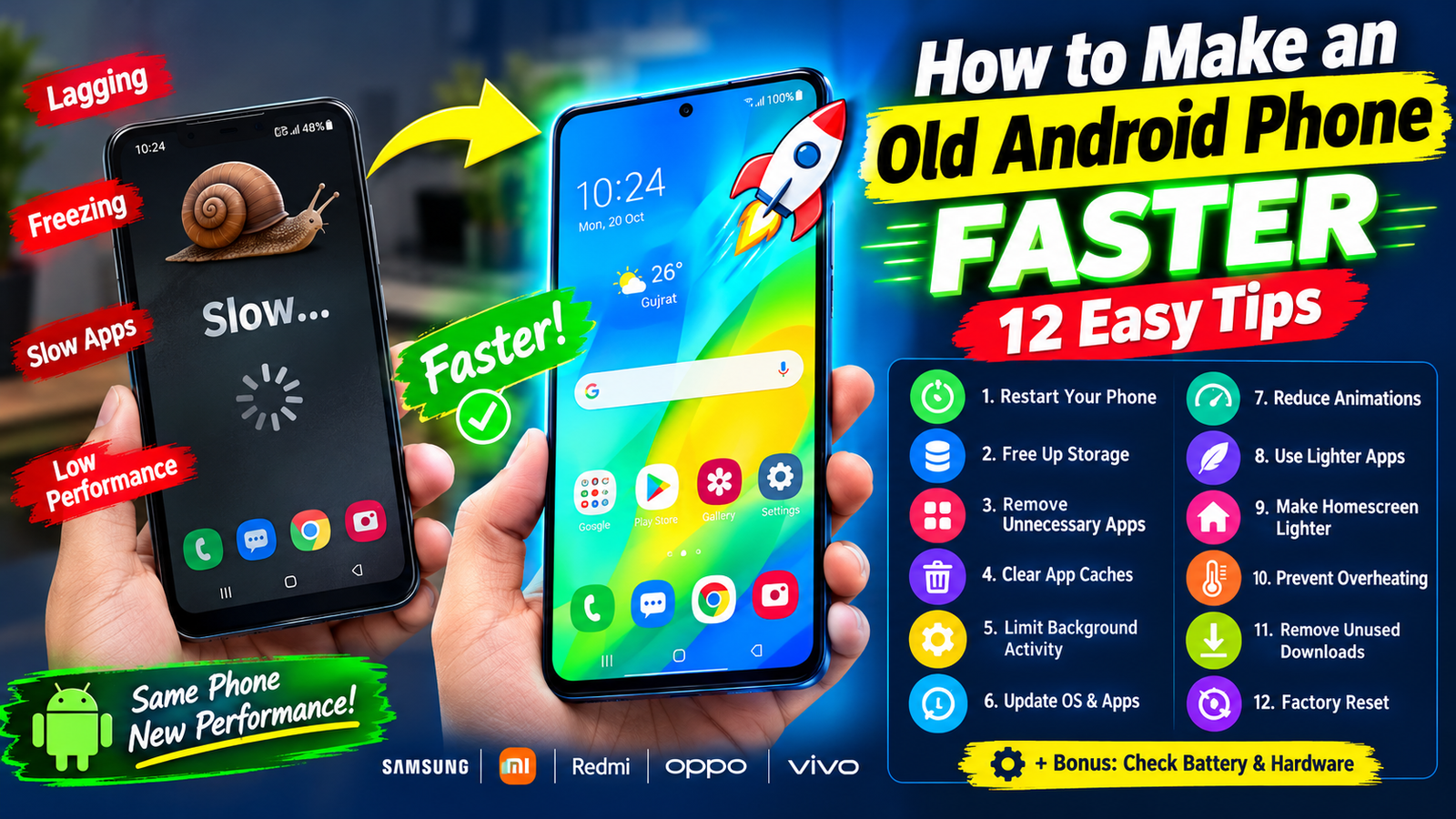
Have you noticed that your old android phone’s started to run slower, freezing more often, and responding sluggishly to your commands? You are definitely not the only one. Some time after their release, Android phones begin to slow down for various reasons. If you do not want to buy a new device right now, here are the easiest ways to speed up Android and make it work like a new phone.
There is a considerable number of tweaks and tricks to make your old Android phone faster, whether it is Samsung Galaxy, Xiaomi, Redmi, Oppor, Vivo, or some other Android smartphone.
1
Restart your phone.
It may seem ridiculous, but turning your phone off and back on helps. Sometimes androids tend to freeze on their own after days, or even weeks’ worth of activity. What does Android require to turn off and on again?
A few taps on the power button, or the power button in Qick Settings and choose Restart. Wait until your device reboots.
If your device becomes sluggish on a regular basis, restarting it regularly can assist. But it’s not a permanent solution since such issues appear frequently with aging systems, apps, and storage performance.
2
Free up storage space.
Your Android device utilizes storage space for its operations and caching. Some smartphones give a warning when storage is low, and many users report Android runs significantly slower when storage is near or at 100 percent. Clear up some space by deleting files and apps that you don’t utilize regularly.
How to clear up storage space on Android:
Remove old photos and videos
Delete outdated downloads or documents
Uninstall rarely used apps
Store photos, videos, and important documents in PC and cloud storage rather than in your phone
Or use an application to delete files not in use by your android phone
Open the Settings app and look for Storage or My Storage to free up space – the menu items might be different on various devices.
Having about 40 percent of storage space free is considered a healthy level.
3
Remove unnecessary apps.
A lot of us install apps and then occasionally utilize them, or not at all. In either scenario, it’s best to completely remove such apps from your phone since they take storage space that could run out. Additionally, they might add undesirable widgets and notifications.
To force-stop or uninstall an app, swipe on its icon in your app drawer, and tap Uninstall, or launch Settings > Apps. You may uninstall the apps you don’t want anymore by hitting an X in them in that mode.
Do not remove or disable apps, system programs unless you know exactly what they are
You can usually disable preinstalled apps that come with the phone in Settings > Apps.
4
Clear Apps’ Caches
Individual apps save cache and log files to accelerate their performance.
Sometimes, apps need their caches cleaned, especially if that application is malfunctioning in some manner.
To clear cache for a particular app:
1. Open Settings
2. Select Apps
3. Choose an app you want to clean.
4. Then go to Storage or Storage and Cache
5. Clear Cache.
Do not hit Clear Data unless you’re aware of what you’re doing since it often erases your information in that application like logging you out, or completely deleting the data stored there locally.
You shouldn’t need to clear every single program’s cache on a regular basis – just those that you suspect to be particularly heavy, or whose cache you realize isn’t getting deleted normally.
5
Limit Background Activity
When not in use, apps keep running in the background – which might waste your battery and cellular data while slowing your device.
Check which apps are authorized to launch in the background, and disable any heavy apps that don’t need constant access.
Background limitations can be turned on/off in Settings – Apps – Battery or something similar, depending on the android version and the phone maker. It should be simple to identify which apps are not getting much use. The same Settings option sometimes offers a Background Restrictions switch that tells you what’s going on.
Do not utilize background limitations for messages, email, cal, or apps you want to keep updated. You should disable the background activity of some applications but leave others alone.
In Samsung Galaxy devices, there are handy features such as Sleeping apps and Deep sleeping apps.
6
Update your operating system and applications
System software and application updates frequently incorporate performance tweaks and stability patches, so it’s essential to maintain Android devices up to date. At the same time, operating systems do evolve, growing heavier and occasionally less optimized for older hardware. As a result, Android updates beyond a certain point might not be practical – particularly if they cause more issues than they fix.
To check if an update is available, go to Settings and look for Software update or System update and hit check for an update. On the other hand, there is also Google Play Store – open the Play Store app, head to your profile, hit Manage apps and devices to update the apps.
Always remember that you’ll need some free space on your device before installing a significant update. Furthermore, it’s vital to back up any crucial data before undertaking such procedures since there is always a risk of data loss.
7
Reduce animation to make your old Android phone faster.
Make your old Android faster by cutting back on animations. You may make your phone’s interface feel snappier by reducing or entirely disabling animations in Android. Animations in Android generally pertain to elements such as transitions between windows and activities, and the way apps launch and close.
You can reduce the intensity of these effects in the developer options:
Find developer options by going into Settings – About Phone and hitting Build number or similar. There should be a message saying that you’ve enabled developer options by tapping on the build number 7 times, if prompted, with your PIN.
After that, you’ll have access to the Developer options in the Settings menu – there you may find the following options:
Window animation scale
Transition animation scale
Animator duration scale
You can modify all of these to 0.5x, but it’s better to simply experiment and see what feels best. Animation tweaking is not recommended for inexperienced users because of the intricate nature of Android’s virtual machine. The actual menu titles could differ – it depends on what device and software version you’re running.
8
Use lighter apps.
Modern apps sometimes require more RAM and system resources than older smartphones can handle regularly. To put it another way, if an app tends to use more RAM and run slower on your phone, see if there isn’t a lighter version of it. If you don’t use the app excessively, try visiting the mobile version of a website rather than using a separate application. It’s a good idea to disable widgets and mult-tasking whenever possible.
Furthermore, just download apps from well-known sites like the Google Play Store, and avoid dubious third-party modified versions that make outrageous claims.
9
Make your homescreen lighter.
Depending on your launcher, live wallpapers and widgets might utilize some extra resources.
Therefore it’s a good idea to use a simple wallpaper (preferably static) and disable widgets and live icons you never use. You could also organize your apps into folders to minimize the number of icons on your home screen. It won’t enhance your hardware, but it will feel more organized and save some processing energy in the process.
10
Make sure your phone does not overheat
When a phone overheats, it may throttle itself to avoid damaging other hardware, slowing it down in the process.
If your phone is getting too hot, close some heavy apps, leave your phone in the shade, and avoid playing graphic or processor-intensive games until it has cooled down.
If the phone heats up while charging, double-check that everything is in order with the charger and cable and don’t run resource-draining apps while it is charging.
If the phone regularly overheats or shuts off, inspect it for swelling or damaged hardware. Do not use such a phone if the battery looks swollen, and contact a service center.
11
Remove unused downloads.
Various downloaded offline content apps eat up storage space when not needed. Delete videos, pictures, documents that you no longer need.
Check Downloads folder. There may be a lot of stuff you can delete on your Android. If you use WhatsApp or any other messenger, check what big media you have there, and delete anything you don’t need. Always double-check, and delete files only if you are certain that you will not need them anytime soon. This tip mainly concerns smartphones that do not have much storage.
12
Factory reset: erasing everything but the essentials
If you are not satisfied with the performance of your phone even after trying all of the aforementioned solutions, give a factory reset a shot – it would eliminate most problems that slow down Android. In case your Android runs slow because of unwanted programs, corrupted data, or a troubled OS.
Still, the factory reset is not a magic trick! All data is lost during the procedure, so make sure nothing is left in your phone that you may need. Remember to back up your photos and documents somewhere safe and remember your Google account’s credentials. Moreover, there is a strong possibility that, after the factory reset, the condition of your phone will remain the same because of a weak processor or old RAM, or battery.
Before doing that, make sure you know what to do in case of a factory reset for your device, since different manufacturers offer slightly diverse solutions.
Bonus: examine battery and hardware issues
Batteries in phones are known to degrade as time passes, and they can be a point of failure for various hardware issues. The phone may also shut down due to extreme temperatures.
Contact a service center to examine your phone if your phone freezes severely and loses performance even though there is enough free space. Older devices tend to degrade significantly with time, so you may need to replace the battery or seek hardware-level expertise from engineers. A new battery will not make your old phone any faster, but it will certainly prolong its useful life.
Conclusion
There’s no need for another expensive gadget if you know how to accelerate your Android phone properly. Some basic tweaks and tricks will show you how to make your old Android phone as fast as new. First of all, reboot your phone, free up space on your smartphone, delete unused apps, remove caches for troublesome apps, disable apps, update the system software, and limit the background activity of resource-draining apps. You may also minimize animations, utilize light apps and widgets, declutter your home screen, maintain your phone from overheating, delete downloads, and reset the phone to restore the Android system to its original condition. If none of these work, take it to a service station to examine the hardware-level issues.
I assume these handy tips to make your old Android phone faster will assist you greatly.