
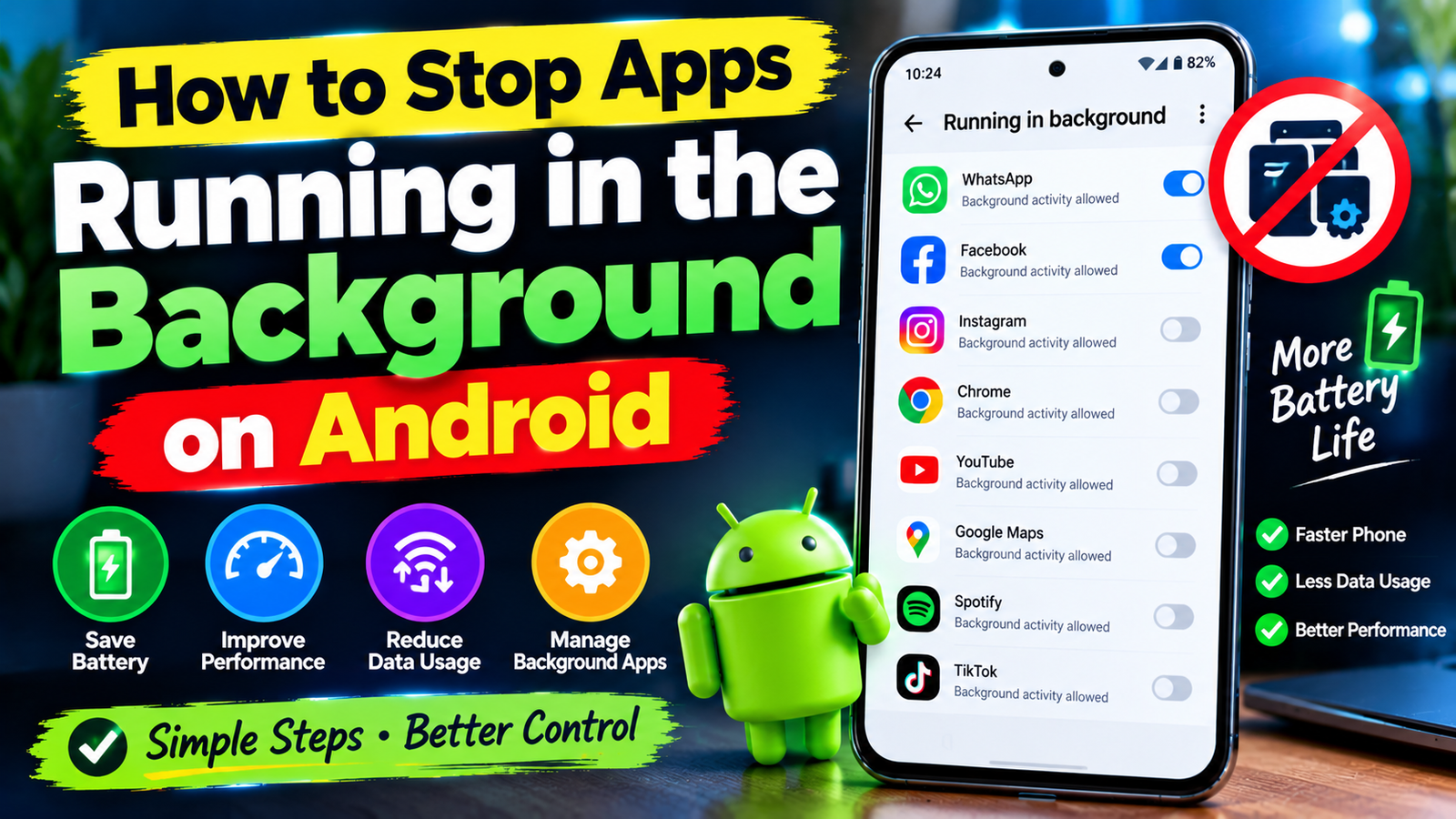
Do you notice that your phone is getting slower as time passes? That battery is now dying faster than before? Your Android phone is suddenly using more mobile data than ever? The culprit might be having too many apps running in the background.
Apps running in the background complete important actions like fetching new messages, updating information, sending or receiving notifications, and more. There are also apps that keep running unnecessarily in the background. These apps unnecessarily drain battery, RAM, and mobile data.
If you want to know how to stop apps running in the background on Android, then we will tell you a few simple and easy methods to do that without uninstalling apps.
Why Do Apps Run In The Background?
As mentioned above, apps running in the background are useful. However, there are also some apps that keep running unnecessarily. Android lets apps run in the background so that they can perform essential actions like WhatsApp fetching new messages or Google Photos backing up photos. However, some apps unnecessarily utilize your system resources.
Background activity in apps can lead to
• Increased battery drainage
• Higher usage of mobile data
• Slowdown of your phone
• Increased usage of RAM
• Overheating of your phone
• Unnecessary notifications on your phone
• Battery dying faster while sleeping at night
The good news is that there are several in-built methods provided by Android to restrict background activity of apps.
Let’s take a look at some of the best ways to stop apps running in the background on an Android phone.
Restrict Background Activity From App Settings
One of the easiest ways to stop apps from running in the background on Android is by restricting their background activity. This option is usually found under the battery settings of an application.
The exact location may vary on your Android phone but generally, you can find it under Settings ➔ Apps or Apps & Notifications. Open Settings, then navigate to Apps section. Click on the app you want to restrict, then go to battery and click on the allow background activity or background usage and choose a restricted option.
This will stop that particular application from running in the background.
However, make sure to not restrict background activity for messaging apps, email apps, banking apps, and other important apps as it may restrict their ability to send and receive notifications or messages.
Use Android’s Battery Optimization
Android provides an in-built battery optimization feature that lets you optimize battery usage by restricting background activity of apps.
To use it, go to Settings ➔ Apps ➔ Special app access ➔ Battery optimization. Note that the exact location may vary depending on your Android phone. Alternatively, you can search for battery optimization in the search bar of Settings.
Once you’re on the battery optimization page, select the apps that use the most battery and allow Android to optimize their background activity.
Optimizing battery usage on apps that unnecessarily use high amounts of battery is a great way to stop apps running in the background on Android.
Put The Unused Apps To Sleep
Putting unused apps to sleep is another great method of restricting background activity of apps. This feature is usually available on Samsung Galaxy phones under the Battery section of Settings.
Go to Settings and search for Battery. Inside Battery, you should be able to find the option for Background usage limits. There you will see the following options:
• Sleeping apps
• Deep sleeping apps
• Never sleeping apps
You can add rarely used apps under sleeping apps category. Similarly, you can add rarely used, important apps like WhatsApp, Facebook, Gmail, and others to deep sleeping category. Apps that are in deep sleeping category do not run in the background unless you open them.
This is particularly useful when you have dozens of apps installed on your phone but only a handful of them that you use on a daily basis.
Turn Off Background Mobile Data For The Apps You Don’t Want To Use
If you are primarily concerned about mobile data usage, then you can turn off background mobile data for the particular apps that you don’t want to run in the background.
Go to Settings ➔ Apps ➔ Select an App ➔ Mobile data. There look for the option Allow background data usage and turn it off.
It is useful to turn off background mobile data for apps that unnecessarily consume large amounts of data.
Disable Background App Refresh or Similar Features
Lastly, make sure to disable all background app refresh features that may be provided by your phone manufacturer. Search your Settings for any options related to background activity, background data, auto-sync, app refresh, battery optimization, or similar terms.
Disabling these will have a big impact on restricting apps running in the background unnecessarily. Be careful not to disable features that are essential for the proper functioning of your phone and apps.
Force Stop Apps That You Are Not Using
If an app is currently using a lot of system resources, you can forcefully stop it from running in the background. Go to Settings ➔ Apps ➔ Select the App ➔ Force stop. If a confirmation message appears, confirm that you want to stop the app.
Using Force Stop will completely stop an application from running. Note that an app you’ve forcefully stopped may begin to run again when you open it or when the system needs its services.
Make sure to only use Force Stop on applications that are problematic or unnecessary. For example, rarely used shopping or editing apps may begin using your battery unnecessarily, in that case, you can use the Force Stop feature.
Uninstall or Disable Apps That You Do Not Need
Instead of letting apps run in the background, why not remove them from your phone? Go to Settings ➔ Apps ➔ See All Apps.
There take a look at all apps you have on your phone and decide which of them you do not need anymore. If there are any apps that you haven’t used in months, then it’s time to uninstall them. Some apps cannot be uninstalled, in that case, you can disable them.
Removing unneeded apps not only stops them from running in the background but also stops them from giving you notifications, taking up your storage space, or unnecessarily utilizing your phone resources.
Use Battery Usage To Identify Problematic Apps
Instead of randomly restricting an application’s background activity, use your phone’s in-built battery usage feature to determine which apps are using the most battery. Go to Settings ➔ Battery ➔ Battery usage. There you can see a list of all apps and services that are utilizing your battery. If there is an application you rarely use but appears on the list, go to its battery settings and restrict its background activity.
This is by far the best way to stop apps running in the background on Android as it lets you identify problematic apps.
Restart Your Android Phone
Sometimes simply restarting your phone can help in resolving issues like apps running in the background unnecessarily. It does so by terminating all background processes. If your phone has suddenly started to become slow, hot, or use more battery, then restarting it will probably fix the issue.
Note that you do not have to restart your phone every now and then. However, if you do notice any unusual behavior from it, make sure to restart it.
Should I Stop All Background Apps?
No. You should not stop all background apps because some of them are necessary for the smooth running of your phone. For example, messaging apps like WhatsApp or email apps like Gmail need to constantly run in the background so that they can fetch new messages or emails. Similarly, there are some essential system services that run in the background so that your phone can function smoothly.
What you should do is limit background activity of apps that:
• You rarely use
• Drain your battery
• Use large amounts of mobile data
• Constantly send you unnecessary notifications
• Are otherwise malfunctioning or running unnecessarily
Does Stopping Background Apps Save Battery?
It can save battery however, the impact it will have on your battery depends on the app. Stopping a problematic app from running in the background can save your battery. However, it is not recommended to always use the Force Stop method on apps as it will only stop them from running and resume them as soon as you open them or when the system needs its services.
Android operating system is smart enough to stop unnecessary apps from running in the background so you should not stop normal apps from running in the background unless they start to malfunction.
AQs
How Do You Stop Apps From Running In The Background On Android?
Go to Settings ➔ Apps ➔ Select the App ➔ Battery and look for background activity or battery usage option and restrict it. You can also try using the battery optimization feature provided by Android.
How Do You Stop Apps From Draining Your Battery In The Background?
Go to Settings ➔ Battery ➔ Battery usage. There look for apps that unnecessarily drain your battery and restrict their background activity or battery usage.
Does Force Stop Stop An App Permanently?
No, the Force Stop only stops an application from running. It can resume running when you open it or when Android needs its services.
Will Restricting Background Activity Stop Notifications?
It can, if you restrict background activity of messaging or email apps then they will not give you notifications.
Is it Safe To Stop Background Apps?
Generally, it is safe to stop background apps however, do not stop apps that are important for the smooth functioning of your phone.
Final Thoughts
Your phone is getting slower, hotter, and using more battery or mobile data than it should? The reason might be that there are too many apps running in the background. However, you should not stop all apps from running in the background as it can affect their proper functioning.
Instead, go to Battery ➔ Battery usage and identify apps that are using large amounts of battery. Go to their battery settings and restrict their background activity. You can also try using the battery optimization, putting unused apps to sleep, restricting background mobile data, and Force Stop options provided by Android.
Have you ever considered about adding a little bit more than just your articles?
I mean, what you say is important and all. Nevertheless just imagine if you added some great pictures or videos to give your posts more,
“pop”! Your content is excellent but with images and clips,
this site could undeniably be one of the most beneficial in its field.
Terrific blog!
I do trust all the concepts you’ve introduced on your
post. They are really convincing and can certainly work.
Still, the posts are very quick for beginners. Could you please lengthen them a little from subsequent time?
Thanks for the post.