
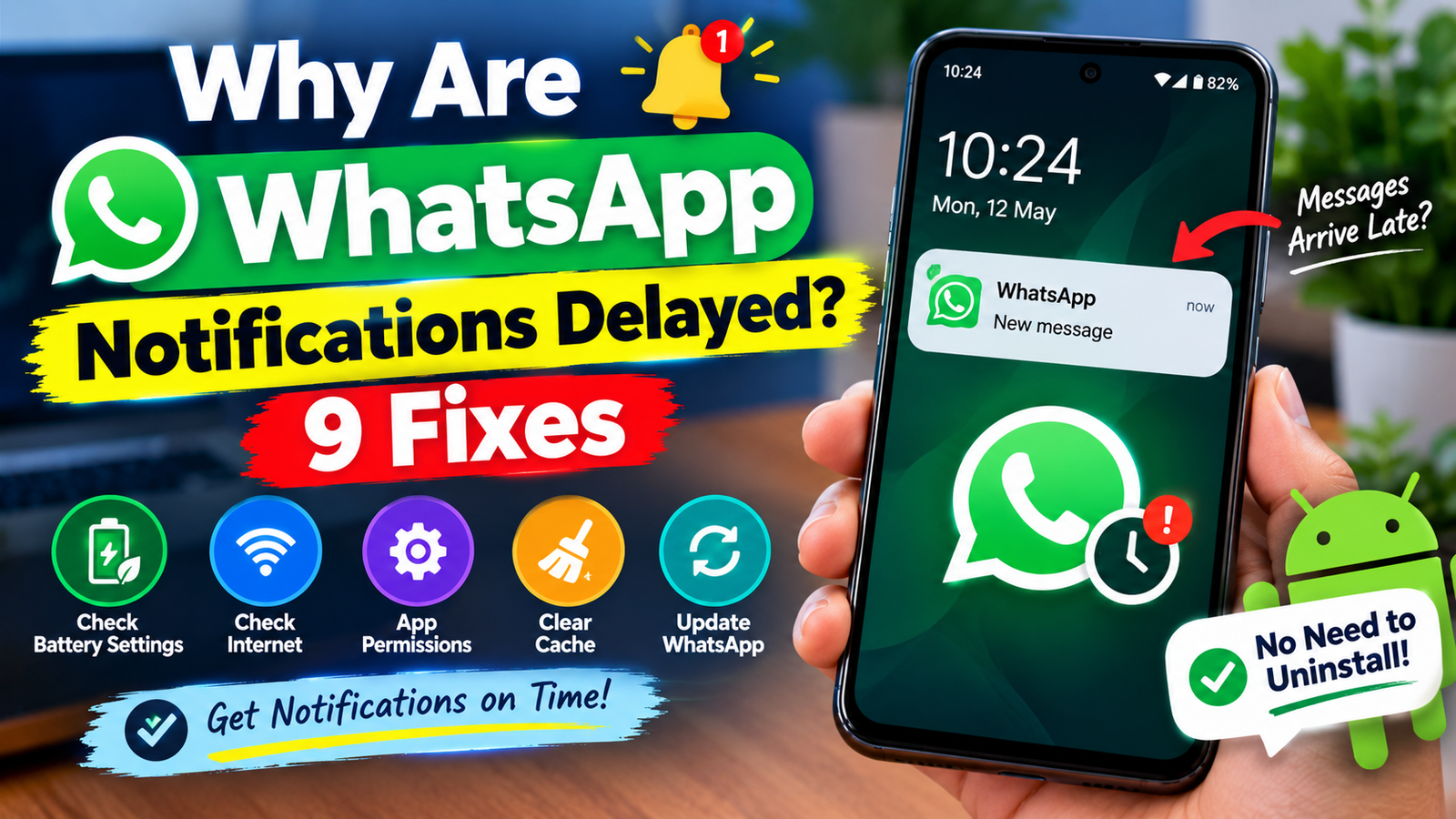
Are you wondering why your WhatsApp notification pops up only after checking the app? Do messages appear hours later even when you’re connected to the Internet? It’s an Android issue most of the times and may be caused by battery optimisation, background restrictions, notifications permission, unstable Internet connection or WhatsApp itself.
In most cases, WhatsApp notifies you almost instantly after receiving a message. If it only appears when you open WhatsApp, your phone simply doesn’t allow the app to run in the background.
Luckily, there are several things you can do to fix delayed WhatsApp notifications without losing your WhatsApp data or factory resetting your phone.
Let’s take a look at 9 solutions below.
Check WhatsApp Notification Settings
The first thing to do is to check WhatsApp notification settings.
Open Settings → Notifications → Apps notification → WhatsApp and make sure that notifications are enabled.
Depending on your Android phone, you may see separate toggles for Message notifications, Group notifications, Call notifications and other categories. Make sure that the relevant toggle is on.
Some Android phones allow to set notifications sound to Silent (not Alerting), so check this option too. If you’ve accidentally set WhatsApp notifications to silent, you won’t hear it even when a message has arrived.
Disable Battery Optimisation For WhatsApp
Battery optimisation is one of the most common reasons why WhatsApp notifications are delayed on Android.
If your phone has optimised WhatsApp to save battery, it may stop background processes which prevents instant message delivery. This includes notification as well.
Open Settings → Apps → WhatsApp → Battery.
Depending on your Android phone, you may see WhatsApp battery optimisation options here.
Choose Unrestricted or similar option (not Optimised or Restricted). It may vary for Samsung, Xiaomi, OnePlus, Oppo, Vivo, Pixel and other manufacturers.
Allow Using Mobile-data In Background
If your phone doesn’t allow background data for WhatsApp, it can stop instantly message delivery when you’re not actively using the app.
Open Settings → Apps → WhatsApp → Mobile data.
Make sure that background data is allowed for WhatsApp. Some Android phones have a separate option to allow background data usage.
If you have Data Saver enabled, make sure that WhatsApp is allowed to use data even when Data Saver is on.
It may be important if you experience delayed notifications only when using mobile data.
Check Internet Connection
WhatsApp needs an active and stable Internet connection to receive messages. It may appear late if your connection is unstable.
Try opening any web page to see if it’s working. If you’re using Wi-Fi, try switching to mobile data or vice versa. If it’s working via Wi-Fi but not mobile data, try restarting your router and re-trying.
Same applies if notification appears only when you’re connected to Wi-Fi. Double-check your network settings to see if it’s stable.
Disable Data Saver and Battery Saver Temporarily
Some phones have Data Saver and Battery Saver features which may prevent WhatsApp from using data in background or save battery by limiting background processes.
Check if either of these features is enabled on your phone and disable them temporarily.
If WhatsApp notifications appear normally after disabling Data Saver or Battery Saver, it may be the cause of the issue.
You don’t need to disable these features permanently. Most phones allow you to add WhatsApp to an exception list so that it can use data and background processes even when Data Saver or Battery Saver is on.
Check Do Not Disturb Settings
Sometimes messages are delivered normally but you don’t hear or see any notification because Do Not Disturb or similar setting is enabled.
Open Settings → Notifications → Do not disturb. Check if Do Not Disturb is enabled or set to a schedule. Make sure that WhatsApp is permitted to show notifications anyway.
Note that Do Not Disturb doesn’t prevent WhatsApp from receiving messages. It only suppresses notification sounds and alerts.
Restart Your Phone
If none of the above methods has worked, try restarting your phone. Sometimes Android systems freeze and require a reboot to refresh background processes and fix unexpected glitches.
After restart, try sending yourself a WhatsApp message from another device and see if it appears on your phone while the screen is locked.
If it does, the issue was probably caused by a temporary system glitch and it should be fixed after a reboot.
Update WhatsApp and Android OS
Make sure WhatsApp is updated to the latest version. Open Google Play Store → Search for WhatsApp → Update if needed.
Besides WhatsApp, make sure your Android phone is updated to the latest version as well. Some WhatsApp issues are resolved by firmware updates from phone manufacturers.
However, if you’ve recently updated your phone and the issue appeared after the update, wait until another update comes out.
Clear WhatsApp Cache
If the problem is caused by a corrupted WhatsApp cache, you can try clearing it. Open Settings → Apps → WhatsApp → Storage → Clear Cache.
Clearing cache will clear all temporary WhatsApp data, but it usually doesn’t affect your chats or messages.
Make sure you don’t clear WhatsApp data (it’s a different option) unless you know what you’re doing.
After clearing cache, restart your phone and see if the issue is resolved.
Why Are WhatsApp Notifications Coming Only When I Open WhatsApp?
This issue usually appears when a phone doesn’t allow WhatsApp to run in background. Check notification settings, battery optimisation, background data, data saver, battery saver and Do Not Disturb settings.
If WhatsApp works normally when you open it but doesn’t notify you when the screen is off, check battery optimisation settings.
Why Are WhatsApp Notifications Delayed On Samsung?
Samsung has several battery optimisation features that may prevent WhatsApp from running in background when the screen is off. If you have a Samsung phone, check battery optimisation settings for WhatsApp.
Check your phone’s Battery settings for Background restrictions, Sleeping apps or similar options. Make sure that WhatsApp is not put to sleep or restricted in background processes.
It may vary for different Samsung devices and One UI versions. Usually, you can find it under the Battery tab.
FAQs
Why do WhatsApp messages appear only when I open the app?
It’s usually caused by background process restrictions. Your phone may stop WhatsApp from running in background, so it only opens when you launch it. It may be caused by battery optimisation, background data restrictions, notification settings, Do Not Disturb or similar settings.
Why are my WhatsApp notifications coming late?
There are many reasons for this issue. It may be caused by unstable Internet connection, battery optimisation, background data restrictions or a bug in Android or WhatsApp itself.
Does clearing WhatsApp cache delete my chats?
No, it shouldn’t. Clearing cache only deletes temporary WhatsApp data, but not chats. However, make sure that you don’t clear WhatsApp data (not cache) because it will delete your WhatsApp chats.
Should I turn off battery optimisation for WhatsApp?
It depends on your phone. If WhatsApp notifications appear late or not at all, you may want to disable battery optimisation for WhatsApp. Make sure that background processes are allowed as well.
Final Thoughts
Delayed WhatsApp notifications may be really annoying, especially when you rely on WhatsApp chats and calls. Luckily, there are many things you can do to fix it. First of all, check notification settings, battery optimisation, background data, data saver and Do Not Disturb. Then, check Internet connection and update WhatsApp or your phone if needed.
If WhatsApp messages only appear when you open WhatsApp, check all background process restrictions and battery optimisation. You may want to disable Data Saver or Battery Saver for WhatsApp if needed.
By following all 9 solutions above, you should be able to fix delayed WhatsApp notifications and get more timely message alerts on your Android phone.
Hi How are you For what purpose have you posted this article on your website.