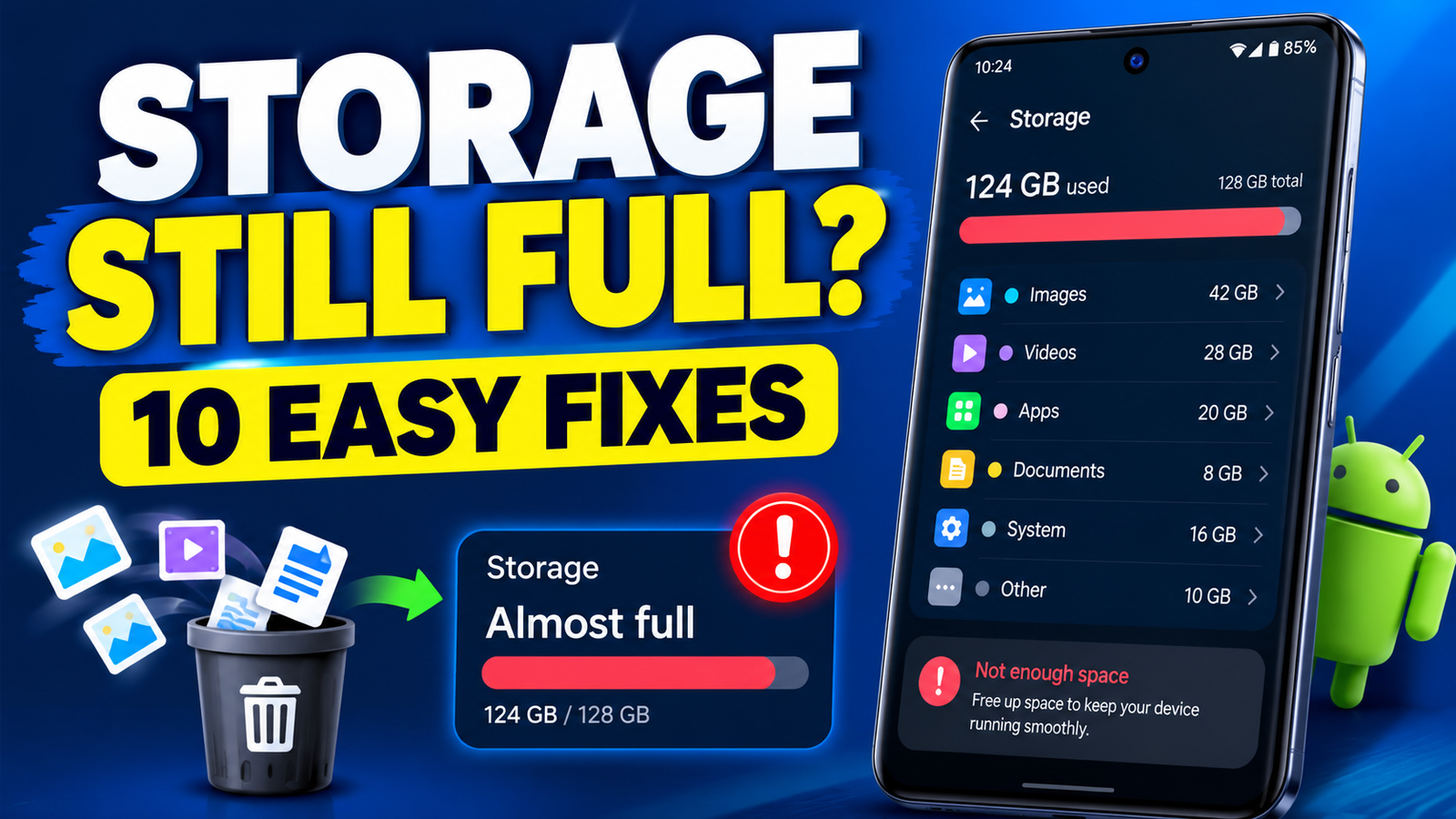
Have you deleted photos, videos and all other unwanted digital file types from your Android device, but it still displays that there is not enough space left? This problem occurs quite frequently among Android users, and the main reason is that deleting the files that you see is not necessarily deleting all data that takes up space.
You may attempt various solutions like buying a new phone or resetting it to the factory state, but there are usually some other and much simpler options.
In this article, you will be able to find out why Android storage gets full after deleting files and how to fix it.
Assess the Situation by Checking Android Storage
Before we start deleting anything else, it is essential to ensure that the issue is not in the newly deleted files. To do that, you should check how Android storage is occupied.
All the details may vary depending on the phone you use and the version of the Android operating system, but the overall idea will stay the same. The essential point here is that not all the data that takes space is visible, so not all of it is safe to delete. Nevertheless, knowing what occupies the storage will make the situation clearer.
Let’s see how you can check it:
• Open the Settings menu
• Look for Storage or Device care
• Open the storage utilization menu
• Check how the storage is organized (applications, images, videos, documents, system data, etc.)
Now, if anything except photos and videos takes up the majority of the storage, you might want to reconsider some of the following solutions.
Empty the Trash or Recycle Bin
One of the most plausible reasons why Android storage gets full after deleting files is that some of them went to the trash/recycle bin (depending on the device). In this case, they will still count as the ones taking up space until you empty that bin.
Therefore, you should take a look at your Gallery and delete the pictures and videos that were moved there. For some devices, there may also be a possibility to restore the deleted file types, which is not recommended unless you are entirely sure that you do not need them anymore.
In addition, make sure to empty the Google Photos trash, in case some of the deleted items were there.
Clear Cache
Cached files are temporary files that Android apps use to make the loading process of certain content (images, pages, videos, etc.) faster. They can take up a lot of space, especially if the application in question is used frequently or for a long time.
Clearing the cache of some of the apps that you use will release some storage space without deleting any of the files that you would be unable to restore.
To clear the cache, follow these instructions:
1. Open the device Settings
3. Open the Storage or Storage and cache menu
4. Clear the cache
Consider clearing the cache for some of the most used applications, such as browsers, social networks, and others that display large amounts of visual content.
Please note that Clear cache and Clear data are two entirely different things. The latter will wipe all the data saved in an application, so it is essential to make sure that you do not need anything that it contains.
Delete WhatsApp Media
Believe it or not, but one of the major reasons why Android storage fills up is WhatsApp. It is because the app stores an enormous amount of data, including pictures, videos, voice recordings, documents, and more. The good news is that, within the app itself, you will be able to delete the media that you no longer need.
To do that, simply open the WhatsApp app, click on the three vertical dots at the top right corner and go to Storage and data. From there, you will see the Manage storage option that you should select.
Once you are in, make sure to delete only those items that you know for a fact that you do not need anymore. Also, you may want to double-check everything that you are going to remove because some of the file types are not recoverable. In addition, make sure to empty the WhatsApp trash/recycle bin if your device has that option.
Remove Downloads and Offline Content
It is very possible that you downloaded several videos, documents, or music tracks to your phone, but somehow forgot about them. That is why it is a good idea to take a look at the Downloads section in your phone’s file explorer and remove everything that you do not need.
Furthermore, you should also consider deleting the offline content that is stored in some of the apps, including music and video streaming platforms, navigation software, podcasts, and others. Such data types usually take up a lot of storage, and the overall size depends on the resolution of the videos and the length of the audio files.
By deleting the unnecessary items, you will be able to free up some additional space on your phone.
Restart Your Android Device
There is a possibility that the reason why Android storage got full after you deleted some files was not the files themselves but a minor error. In such a scenario, simply restarting your phone will give the device some time to reorganize the data, and the storage size will refresh. After the restart, take a look at the storage space once again.
If it still does not reflect the changes you have made, you can try the option below. However, please note that a restart will not clear the trash/recycle bins or the contents of the applications.
Check System or Other Data
One of the last things that you should do before considering more radical options (like factory reset) is to check what takes up space under the System or Other category (the name may vary depending on the device). The System occupies a certain amount of storage by default because it contains essential Android components.
However, sometimes it may take up more space than expected, indicating some issues with the updates or underlying data. On the other hand, Other usually refers to some of the other file types. If everything looks okay, you can proceed to the next step.
Otherwise, you may want to clear some of the system data or remove any unneeded files with the help of a storage cleaner, clear the cache of those apps mentioned above, delete unnecessary downloads and offline content. Furthermore, restarting your device after the above actions will also help refresh the storage size.
Please note that you should avoid deleting any random system files or folders because that can lead to serious issues with Android.
Transfer Photos and Videos to Another Device
As mentioned above, photos and videos are some of the largest data types that occupy the storage on Android devices. However, when you actually need to use them, you will not be able to access them if they are not on your phone anymore. That is why you can transfer them to another storage device (your computer, USB stick, or perhaps a memory card if your Android device supports it).
Alternatively, you can upload those media file types to the cloud storage solution of your choice, and delete them from your phone. If you are a Google Photos user, make sure that you know the difference between deleting an item and using the space-saving option to remove the local copy of it.
Also, make sure that those photos and videos are actually transferable or backed up before you start deleting them.
Uninstall Unnecessary Applications
Some applications take up more space than they would intuitively seem to do. For instance, they may include offline content, documents, or take up a lot of cache.
To get a better idea of how much each of your applications occupies, you can go to Settings > Apps and see the list. If the option is available, you can sort the applications by the size of the occupied space and remove those you will never use.
If an application is essential but occupies too much space, you can take a look at the options it offers to delete some of its content. In addition, some phones offer the option to archive some of the applications that you do not use often.
However, it is best to avoid removing or disabling those applications that are essential for your phone’s proper functioning.
Factory Reset
If none of the above options seem to work, the last thing you can do is perform a factory reset. It is essential to remember that a factory reset will remove all the personal data from your phone, so make sure that you have a way of backing it up or storing it somewhere else.
Furthermore, a factory reset should only be the last option, as all the previous actions are safer and do not involve losing any information. If, after a factory reset, your Android storage is still full, there might be some issues with the software or even the phone hardware that require professional assistance.
Conclusion
To summarize, if your Android storage is full after deleting files, you can fix that by emptying the trash/recycle bin, deleting photos and videos that you no longer need, removing unnecessary WhatsApp media, clearing some of the applications’ caches, deleting downloads and offline content, transferring the essential media file types to another storage device, uninstalling rarely used applications, and possibly resetting your phone to the factory state.
However, it is crucial to take certain precautions before doing any of those things. You should avoid deleting system files unless you are entirely sure that they are not necessary. In addition, it is essential to make sure that all the files you are deleting are not required by some of the applications you are using.
With that being said, applying any of the solutions described above will almost certainly help you to free up some storage space on your Android device.
SEO settings
• SEO title: Why Is Android Storage Still Full After Deleting Files? 10 Fixes
• URL slug: `android-storage-still-full-after-deleting-files`
• Meta description: Android storage still full after deleting files? Discover 10 easy fixes to clear cache, empty trash, remove WhatsApp media, and more
• Primary keyword: why Android storage is full after deleting files
• Related keywords: Android storage full after deleting photos, free up Android storage, Android storage not freeing up space, clear Android cache, phone storage full for no reason.
• Featured image alt text: How to fix Android storage that remains full after deleting files.