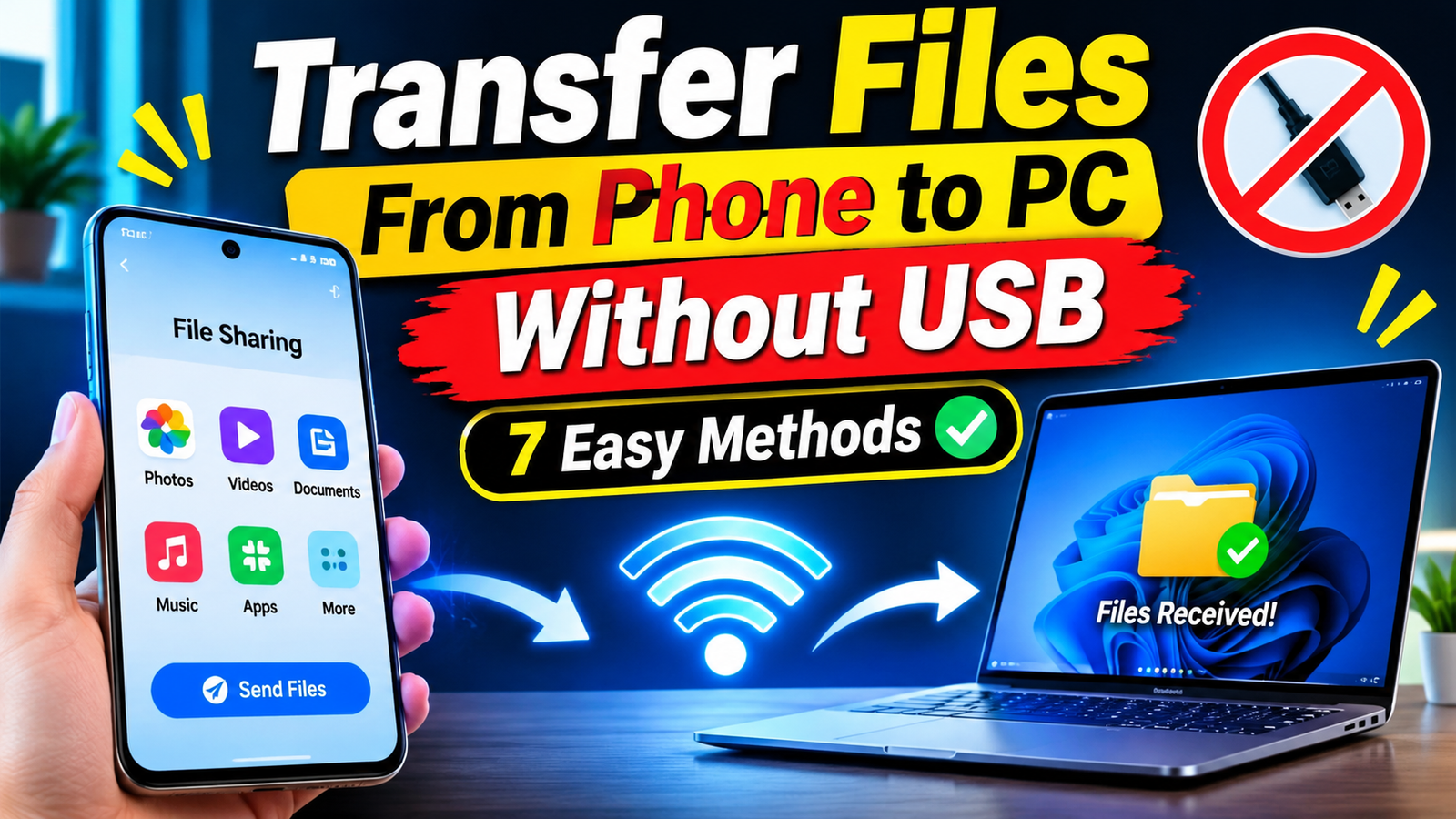
Transferring files from your smartphone to your computer is something that most of us will need to do. This could be to transfer photos, videos, documents, music and important files. However, sometimes you won’t have access to a USB cable to do this.
The good news is that there are many different ways to transfer files from your phone to your PC wirelessly.
Below we’ll show you 7 Easy Ways to transfer files from phone to PC without using a USB cable. These methods will work on most android smartphones including Samsung Galaxy, Xiaomi, Redmi, Oppo and Vivo. As well as Windows based computers.
Let’s get started!
Transfer Files via Quick Share
One of the easiest ways to transfer files wirelessly between Android phones and Windows computers is with Quick Share. This allows you to share photos, videos, documents and more without needing an internet connection.
To use Quick Share follow these steps:
Download Quick Share on your Windows computer.
Open Quick Share on your PC.
Ensure Bluetooth and Wi-Fi are enabled.
Open Gallery or File Manager on your smartphone.
Select your files.
Tap the Share option.
Tap Quick Share.
Select your computer.
Accept the transfer request on your PC if required.
Your files will be transferred wirelessly.
Best for: Photos, videos, documents and large files.
Transfer Files via Bluetooth
Another easy way to transfer files without a USB cable is via Bluetooth. Most modern android smartphones and laptops will support Bluetooth.
HoweverBluetooth is generally slower than Wi-Fi methods.
To transfer files via Bluetooth follow these steps:
Open Settings on your Android phone.
Turn Bluetooth on.
Open Bluetooth settings on your Windows PC.
Pair your smartphone to your computer.
Select the file you wish to send.
Tap Share and select Bluetooth.
Choose your computer.
Accept the incoming file on your computer.
Your file will be transferred.
Pros:
No USB cable required.
No internet connection required.
Easy to setup.
Useful for smaller files.
Cons:
Not recommend to transfer large videos or lots of photos as it can be very slow.
Transfer Files via Google Drive
If you want to transfer files from your phone to your PC then Google Drive is an excellent choice. This uses internet to help transfer files.
Google Drive works using cloud storage so you don’t need your phone and computer to be on the same Wi-Fi network.
To use Google Drive follow these steps:
Open Google Drive on your smartphone.
Login to your Google account.
Tap the + button.
Select Upload.
Select your photos, videos or documents.
Wait for your files to upload.
Open Google Drive on your computer.
Login using the same Google account.
Find your uploaded files.
Download them onto your PC.
Now your files will be on your computer.
Why Google Drive?
Transfer files from anywhere.
No direct connection needed.
Useful for important documents.
Supports many file types.
Keep in mind that uploading/downloading files will use internet data. Your storage space will also depend on how much storage you have on your Google account.
Transfer Files via WhatsApp Web
WhatsApp is a great app to not only send messages but to also transfer files from your smartphone to your computer.
This method is great for transferring single files such as photos, documents and PDFs.
To transfer files via WhatsApp Web follow these steps:
Open WhatsApp on your smartphone.
Open a chat to yourself if available.
Tap the attach icon.
Choose a document or photo you wish to transfer.
Send the file.
Open WhatsApp Web on your computer.
If needed scan the QR code to link your WhatsApp account.
Open the same chat.
Download your file.
Pro tip: If you want to keep the quality of your photos then transfer them as a document.
This method is easy to use but is not ideal for transferring hundreds of files.
Transfer Files via LocalSend
LocalSend is a free app that allows you to transfer files between your Android phone and computer. This works using your local Wi-Fi network.
One of the best things about this app is that you don’t need to upload your files to the cloud.
To use LocalSend follow these steps:
Install LocalSend on your Android phone.
Download and install LocalSend on your Windows PC.
Ensure both devices are on the same Wi-Fi network.
Open LocalSend on your devices.
Tap Send on your smartphone.
Select files you wish to transfer.
Select your PC.
Accept the transfer request on your computer.
Your files will be transferred via your local network.
Pros:
Free.
No account needed.
No USB cable.
Many file types supported.
Great for transferring large files.
If you regularly transfer videos, documents or lots of photos then this is a great option to try.
Transfer Files via Microsoft Phone Link
Another useful option is Microsoft Phone Link. This allows you to connect your Android phone to your Windows computer wirelessly.
You can access features on your phone, recent photos, notifications and more.
To use this follow these steps:
Open Phone Link on your Windows computer.
Open Link to Windows on your Android phone.
Login to your Microsoft account if needed.
Follow the instructions to link your devices.
Grant the required permission.
Open the Photos section.
View photos and save any supported files.
Depending on your phone and Windows version you’ll have different features.
This is great for viewing your recent photos however it does not support full file management on all Android folders.
Transfer Files via FTP
Another useful method is to use FTP. This allows you to transfer files from your Android phone to your Windows computer without using a USB cable.
This lets you access shared files on your phone from your computer.
To use this follow these steps:
Install a trusted file manager that supports an FTP server.
Ensure your phone and computer are on the same Wi-Fi network.
Open your file manager on your phone.
Find the FTP server or remote access section.
Start the FTP server.
Your phone will show you the FTP address.
Open File Explorer or FTP program such as FileZilla.
Enter the FTP address.
Browse the folders.
Copy your files.
Make sure you only use this on a trusted private network and turn off the server once you’ve finished transferring.
What Is The Best Way To Transfer Files Without USB?
Depending on your needs each method can be useful. Below we’ve created a quick table to help.
Method Internet Required Best For
Quick Share No Fast wireless transfer
Bluetooth No Small files
Google Drive Yes Cloud transfer
WhatsApp Web Yes Individual files
LocalSend No internet required Large files
Phone Link Network connection Recent photos
FTP No internet required Multiple folders
If you want a quick and easy method then Quick Share is a great option. If you’re looking to transfer large files then LocalSend is an excellent option. You can transfer files using your home Wi-Fi.
Tips To Help Speed Up Your File Transfer
If you’re finding your file transfer is taking too long to transfer then try these tips:
Use Wi-Fi: Using a Wi-Fi method will generally be faster.
Keep close: Being close to give you a strong wireless connection.
Internet connection: If using a cloud service ensure you have a good internet connection.
Large files: Try transferring smaller batches of files.
Keep your phone unlocked: Some apps will require your phone to be unlocked whilst transferring.
Check storage: Make sure you have enough space on your computer.
Original Quality: Choose a original quality option.
FAQs
Can I transfer files from Android to PC without using a USB?
Yes! You can use Quick Share, LocalSend, Bluetooth, Google Drive, WhatsApp Web and more.
What is the quickest way to transfer files from phone to PC without USB?
Quick Share and LocalSend are great options. How fast your transfer will depend on your devices and Wi-Fi.
Can I transfer large videos without a USB?
Yes, Quick Share and LocalSend are great for transferring large videos without uploading them.
Can I transfer files without an internet connection?
Yes, you can use Quick Share, Bluetooth, LocalSend and use FTP with your local Wi-Fi.
Can I transfer files from Samsung phone to Windows PC wirelessly?
Yes! Samsung Galaxy users can use Quick Share, LocalSend, Phone Link and more.
Can I transfer files from iPhone to Windows PC without USB?
Yes! You can use iCloud Drive and more.
Final Thoughts
Transferring files from your smartphone to your computer without a USB cable is easier than ever. You don’t need to spend money on any software or complicated equipment. Simply transfer your important files, photos, videos and more.
If you want an easy option then Quick Share is great. If you regularly transfer large files then LocalSend is another great option. If you want to transfer files from anywhere then Google Drive is great.
Pick the option that suits you best and enjoy transferring files wirelessly.
If you found this helpful then share with others who might find it helpful.